Diagnosing Intermittent ATS Errors and Managing Technical Frustration
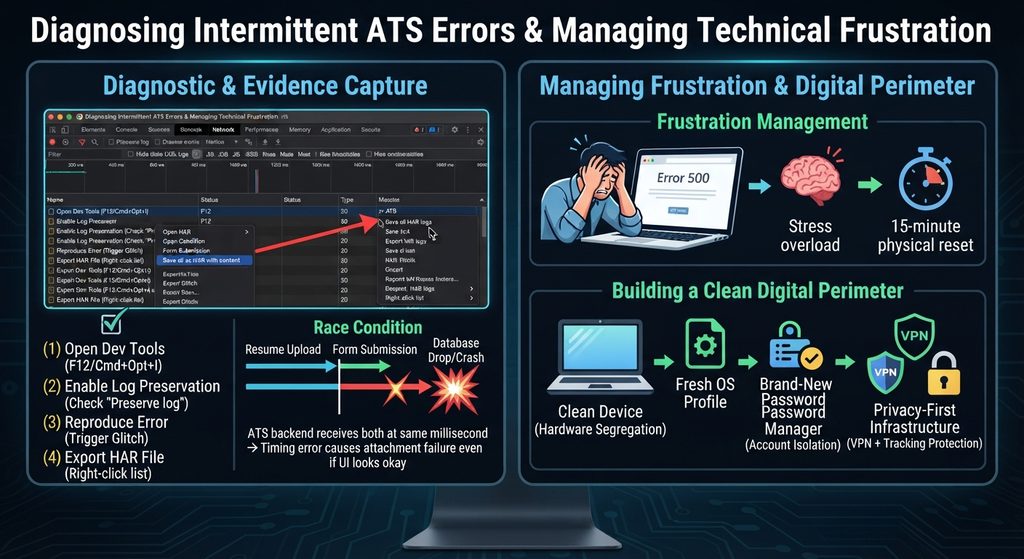
Intermittent technical errors that vanish upon replication are often caused by race conditions, server-side rate limiting, or session token drops, creating an exhausting cycle when combined with high-stakes stress. A race condition occurs when a software system or website processes two or more operations simultaneously, but the final outcome depends on an unintended, specific sequence or timing of events. In the context of job applications, this often happens when an Applicant Tracking System (ATS) backend receives your resume upload and your final form submission at the exact same millisecond. If the database finishes processing the form submission before the file upload handler has fully registered the file object, the server drops the attachment, resulting in a sudden crash or a “Bad Request” error even though your actions appeared correct on your screen.
To combat this unpredictability, you should immediately capture evidence by running a background screen recording tool to preserve visual states, timestamps, and console logs the moment an error flashes. Additionally, you can export Network HAR logs through the browser’s Developer Tools by right-clicking the request list and selecting “Save all as HAR with content” to secure exact headers, payloads, and server responses for future analysis. Finally, because peak frustration and cognitive fatigue make troubleshooting exceedingly difficult, stepping away for a 15-minute physical reset breaks the adrenaline loop and safeguards your mental energy.
Exporting HAR Files and Establishing a Secure Digital Perimeter
Exporting a HAR (HTTP Archive) file captures a complete record of your browser’s network activity, including payloads and server responses, which is essential for diagnosing intermittent application errors.
1.Open Developer Tools:Shortcut.
Press F12 (or Ctrl+Shift+I on Windows/Linux, Cmd+Option+I on Mac) while on the job application page, then click on the Network tab at the top of the panel.
2.Enable Log Preservation:Crucial Step.
Check the box labeled Preserve log near the top left of the Network panel. This stops the browser from wiping out error data when the page refreshes or redirects.
3.Reproduce the Application Error:Action.
Perform the action that triggers the glitch (such as uploading your resume or submitting the application form).
4.Export the HAR File:Save Data.
Right-click anywhere inside the list of network requests, select Save all as HAR with content (or Export HAR… depending on your browser version), and save the file to your computer.
Building a Clean Digital Perimeter
- Hardware Segregation: If possible, transition your job search and daily browsing to an entirely new, clean device that has never touched your old employer’s network or accounts.
- Complete Account Isolation: Create a fresh user profile on your operating system, use a brand-new password manager, and ensure that every single account uses unique, auto-generated passwords completely disconnected from your past.
- Privacy-First Infrastructure: Route your traffic through a trusted, premium VPN by default, and lock down your browser with strict tracking protection extensions to block any potential local script injection or device fingerprinting.